Tampilkan postingan dengan label web. Tampilkan semua postingan
HOW TO PROTECT AGAINST DDOS ATTACKS - STOP DENIAL OF SERVICE

HOW TO PROTECT AGAINST DDOS ATTACKS - STOP DENIAL OF SERVICE

DDoS Attacks: Situation Overview

Over the last decade, Distributed Denial of Service (DDoS) attacks have continued to proliferate, becoming one of the primary threat types facing virtually every industry and business area that is exposed to the public Internet.Therefore, DDoS protection must be at the core of a successful security strategy.
DDoS attacks attempt to bring down and infiltrate Web sites by flooding the site's origin server with bogus requests, often from multiple locations and networks. If allowed to proceed unchecked, this DDoS attack traffic can produce results ranging from slow page loads to a complete blockage of legitimate site traffic.
These types of attacks can originate from a variety of sources, including 'hacktivists,' for-profit hackers, state-sponsored hacking groups, and others. In many cases, DDoS attacks leverage the force multiplication advantage of 'botnets,' essentially armies of computers that are penetrated and recruited to generate attack traffic unbeknownst to their own user or administrator.

DDoS Mitigation

Given the growing number and scale of DDoS attacks, planning for DDoS attack detection and mitigation is a critical IT function. Since it's virtually impossible to build out sufficient infrastructure to scale in response to a large DDoS attack, solutions like Akamai's Kona Site Defender are increasingly being deployed by owners of Web properties across virtually every industry. Cloud-based solutions like Kona Site Defender offer built-in scalability and global reach to defend against most common types of DDoS attacks, as well as attacks against web applications (SQL Injections, Cross Site Scripts, etc.) and direct-to-origin attacks.

How Kona Site Defender Blocks DDoS Attacks

Kona Site Defender mitigates DDoS attacks by absorbing DDoS traffic targeted at the application layer, deflecting all DDoS traffic targeted at the network layer such as SYN Floods or UDP Floods, and authenticating valid traffic at the network edge. This built-in protection is "always on", and only Port 80 (HTTP) or Port 443 (HTTPS) traffic is allowed. Bursting fees can be capped so users are protected from DDoS traffic running up service fees, and flexible caching maximizes offload from origin.
For added protection, many organizations add a defense layer that protects the Domain Name Server from being overloaded and compromised by Denial of Service attacks, such as Akamai's Fast DNS solution. Both of these solutions leverage the power of the Akamai Intelligent Platform™, which consists of more than 160,000 servers deployed across over 1,200 networks in more than 95 countries.

Akamai's Global Scale Helps Combat DDoS Attack Traffic

The worldwide distribution and massive scale of the Akamai Intelligent Platform™ enables Web sites to stay available without re-routing traffic or impacting performance. Akamai handles 5.5Tbps of traffic daily on average and has handled peak traffic flows of over 8Tbps. And DDoS mitigation capabilities are implemented natively in path so protection is provided only one network hop from the point of request—NOT at the customer origin.

How Secure Website


CSRF - You need to have protection in place to prevent cross site request forgery - or requests to login, signup, or other actions from other sites. This can be used to trick users into performing actions they didn't intend to.
CAPTCHA on signup - It's often recommended to use a CAPTCHA on your sigh-up form to reduce automated signups. How important this is depends on your threat model.
Secure login - The login needs to happen over HTTPS to reduce the risk of the user's credentials being captured via a MiTM attack.
Cookies - While login over HTTPS should be seen as a minimum, everything else really should be over SSL as well to protect the cookies (remember Firesheep?). Though just using SSL isn't enough, you need to set the Secure flag and HttpOnly flag whenever possible.
Email Confirmation - You need to make sure that you verify a user's email address as part of the sign-up process (I'd suggest not letting them login until it's confirmed). You'll need to have this for use in password resets.
Bruteforce protection - You need to protect against an attacker bruteforcing user accounts. There are various ways to do this, locking accounts (which can be used as a DoS attack by locking out large number of users), limiting failed attempts from a given IP (either via ban, or additional CAPTCHA). There are pros and cons to each method, but it's important that you have some form of protection in place.
Secure password reset - You need to make sure that you have a secure method for resetting passwords. This one is more complicated than most people think, and is easy to get wrong (as Apple recently found). The biggest risk is that an attacker finds a way to abuse the feature to reset accounts that they don't own.
I'd strongly suggest that you read the OWSAP Authentication Cheat Sheet, it goes into detail on these and many other potential issues; and as always, when building new systems, it's a good time to take another look at the OWASP Top 10 and make sure you have taken the proper precautions.
12 Tips to Protect Your Company Website From Hackers

12 Tips to Protect Your Company Website From Hackers

Making your website live is like unlocking the door to your premises with your office and safe open: Most of the people who visit your physical building will never even know that all of your data is there to discover just by walking in. Occasionally you will find someone with malicious intent who will walk in and steal your data. That is why you have locks on doors and safes.
Your website is just the same, except that you will never see anyone come in unless you have protection systems in place. Electronic thieves are invisible and fast., searching for your website for details of customers’ accounts, especially for their credit card information. You have a legal obligation to protect this data from theft and to report security breaches that occur.
Theft is not the only thing on the mind of a hacker: Sheer destruction is a major motivator. Hackers may want to destroy all your records, put a sick message on your customers’ screens or just destroy your reputation.
You can never undo the damage done by a hacker, you can take steps to prevent it. Even the most basic protection will discourage many hackers enough to make them go looking for easier pickings elsewhere. Thieves are likelier to steal from people who leave their doors unlocked.

1. Stay updated.

You need to stay up to date with hacking threats. If you have at least a basic knowledge of what is possible then you can protect your website against it. Follow updates at a tech site such as The Hacker News. Use the information you gain to put fresh precautions in place when necessary.

2. Toughen up access control.

The admin level of your website is an easy way into everything you do not want a hacker to see. Enforce user names and passwords that can not be guessed. Change the default database prefix from “wp6_” to something random and harder to guess. Limit the number of login attempts within a certain time, even with password resets, because email accounts can be hacked as well. Never send login details by email, in case an unauthorized user has gained access to the account.

3. Update everything.

Updates cost software companies money. They only do it when necessary, yet many people who use the software do not install updates immediately. If the reason behind the update is a security vulnerability, delaying an update exposes you to attack in the interim period. Hackers can scan thousands of websites an hour looking for vulnerabilities that will allow them to break in. They network like crazy, so if one hacker knows how to get into a program then hundreds of hackers will know as well.

4. Tighten network security.

Computer users in your office may be inadvertently providing an easy access route to your website servers. Ensure that:
  • Logins expire after a short period of inactivity.
  • Passwords are changed frequently.
  • Passwords are strong and NEVER written down.
  • All devices plugged into the network are scanned for malware each time they are attached.
Ever since I founded my hosting company, we've had to watch our network security on a minute-by-minute basis not to be hacked. 

5. Install a web application firewall.

A web application firewall (WAF) can be software or hardware based. It sets between your website server and the data connection and reads every bit of data passing through it.
Most of the modern WAFs are cloud based and provided as a plug-and-play service, for a modest monthly subscription fee. Basically, the cloud service is deployed in front of your server, where it serves as a gateway for all incoming traffic. Once installed, web application firewall provides complete peace of mind, by blocking all hacking attempts and also filtering out other types of unwanted traffic, like spammers and malicious bots. This is a great way to avoid getting hacked like Craigslist.

6. Install security applications.

While not as effective as a full blown WAF, there are some free and paid for security applications that you can install that will make life a bit more difficult for hackers. In fact, even some free plugins such as that fromAcunetix WP Security can provide an additional level of protection by hiding the identity of your website’s CMS. By doing so this tool makes you more resilient against automated hacking tools that scout the web, looking for WordPress sites with specific build and version, which has one or more known vulnerabilities.

7. Hide admin pages.

You do not want your admin pages to be indexed by search engines, so you should use the robots_txt file to discourage search engines from listing them. If they are not indexed then they are harder for hackers to find. This tutorial from SEObook.com is all the help you will need.

8. Limit file uploads.

File uploads are a major concern. No matter how thoroughly the system checks them out, bugs can still get through and allow a hacker unlimited access to your site’s data. The best solution is to prevent direct access to any uploaded files. Store them outside the root directory and use a script to access them when necessary. Your web host will probably help you to set this up.

9. Use SSL.

Use an encrypted SSL protocol to transfer users’ personal information between the website and your database. This will prevent the information being read in transit and accesses without the proper authority.

10. Remove form auto-fill.

When you leave auto-fill enabled for forms on your website, you leave it vulnerable to attack from any user’s computer or phone that has been stolen. You should never expose your website to attacks that utilize the laziness of a legitimate user.

11. Back-up frequently.

Just in case the worst happens anyway, keep everything backed-up. Back up on-site, back up off-site, back up everything multiple times a day. Every time a user saves a file it should automatically back up in multiple locations. Backing up once a day means that you lose that day’s data when your hard drive fails. Remember every hard drive will fail.

12. You can't hide your code.

You can buy software that says it will hide the code on your webpages. It doesn’t work. Browsers need access to your code in order to render your website pages, so there are simple ways to get around web-page “encryption.”
Disabling “right-click” as a way to view your website code is annoying to users because it also disables every other “right-click” function, and there are simple workarounds that every hacker knows anyway. If you have been told that it is possible then read this article on HTMLgoodies.com to get in-depth explanations of why you can never hide your code.
Your Experience: Has your website been hacked? How did the criminals get in? Please use the comments facility below to share your story including the changes you made after the attack

10 Places to Sell Your Web Site

10 Places to Sell Your Web Site

There comes a time when we all have an idea for a web site, we set it up and then…we never have time to work on it. There also comes a time when you realize you don’t have the passion you once did, and instead of just letting it die, you want to find a new caretaker for your once beloved web site. So, what do you do when one of these situations happens?
Well, it’s time for you to look into selling it off — but then comes the question of where to do that. We’ve collected ten of the best options for you.
Flippa.com: has the most websites for sale, over 3,000 at time of writing and also has the largest number of buyers, over 600,000 are registered to buy websites and domain names on Flippa. Over $130 million in web sites have sold on Flippa since launch in 2009. Flippa comes with a simple interface, a super powerful search feature, the option to upgrade your auction , they charge a small listing fee $9-$19, with a 10% success fee. What makes Flippa stand out from the pack is their trust and verification features, like phone number verification and verified Google Analytics traffic stats, which helps boost average selling prices. Flippa also attracts serious buyers who are prepared to pay good money for high quality sites through Deal Flow, website broker service.
Flippa's homepage
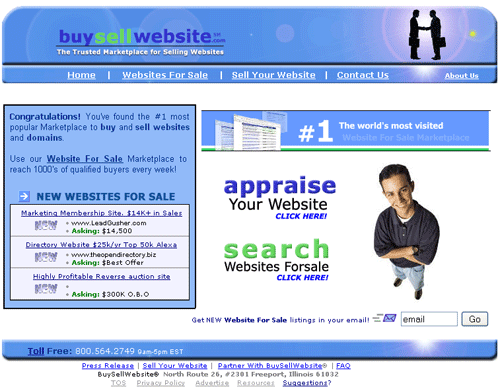
BuySellWebsite.com: BuySellWebsite specializes in established and start-up web sites. Established web sites cost $59 for a 2-week listing, or $99 for a two-month long listing (with a free one-month extension, for a total of three months) that includes being featured on the front page. Start-up sites cost the same, but don’t include the front page featuring.
buysellwebsites
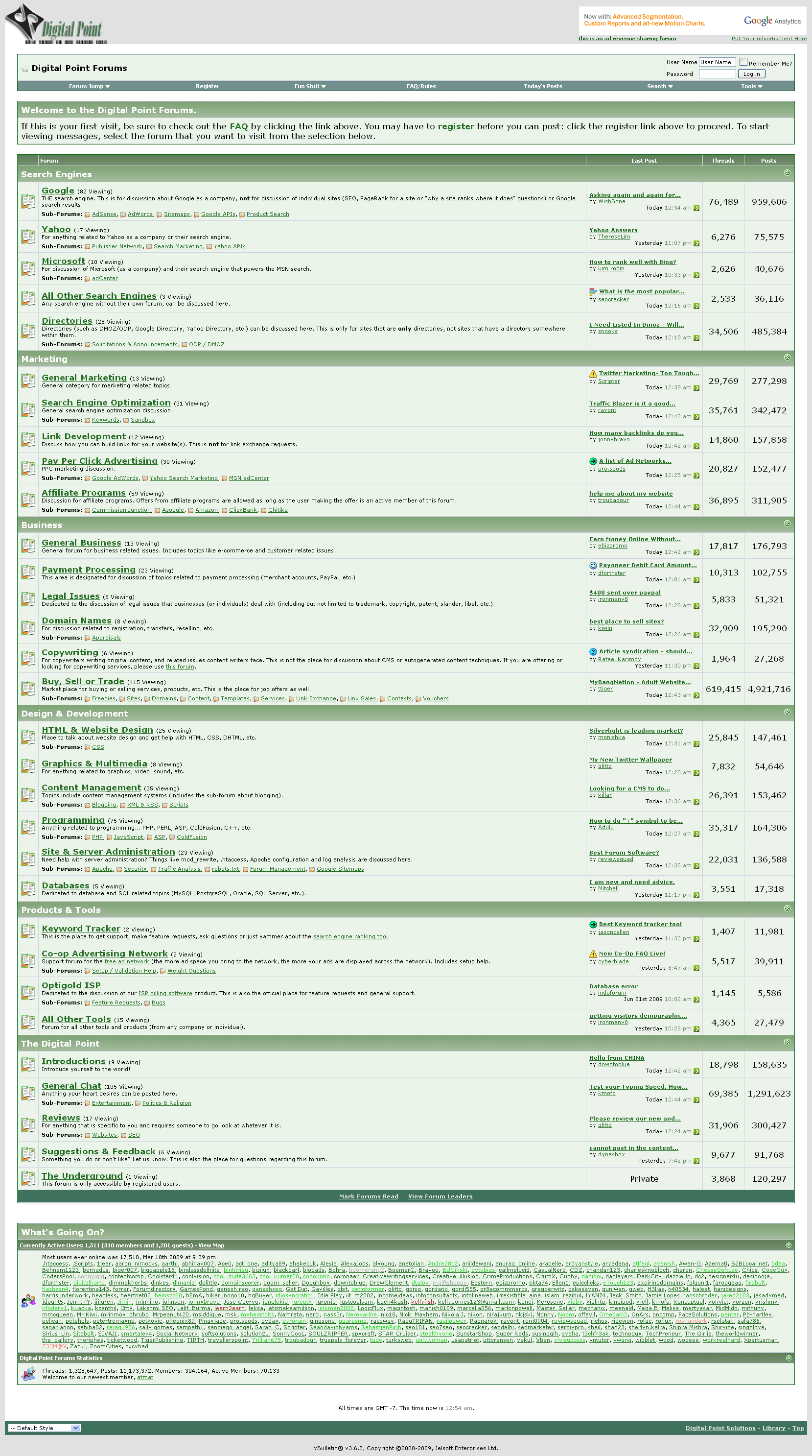
Forums.DigitalPoint.com: A forum for all types of web development that allows you to post a site for sale as long as you have been a member for at least 14 days, do not have a reputation in the red and have a minimum of 25 posts throughout their boards.
forums_digitalpoint_coms
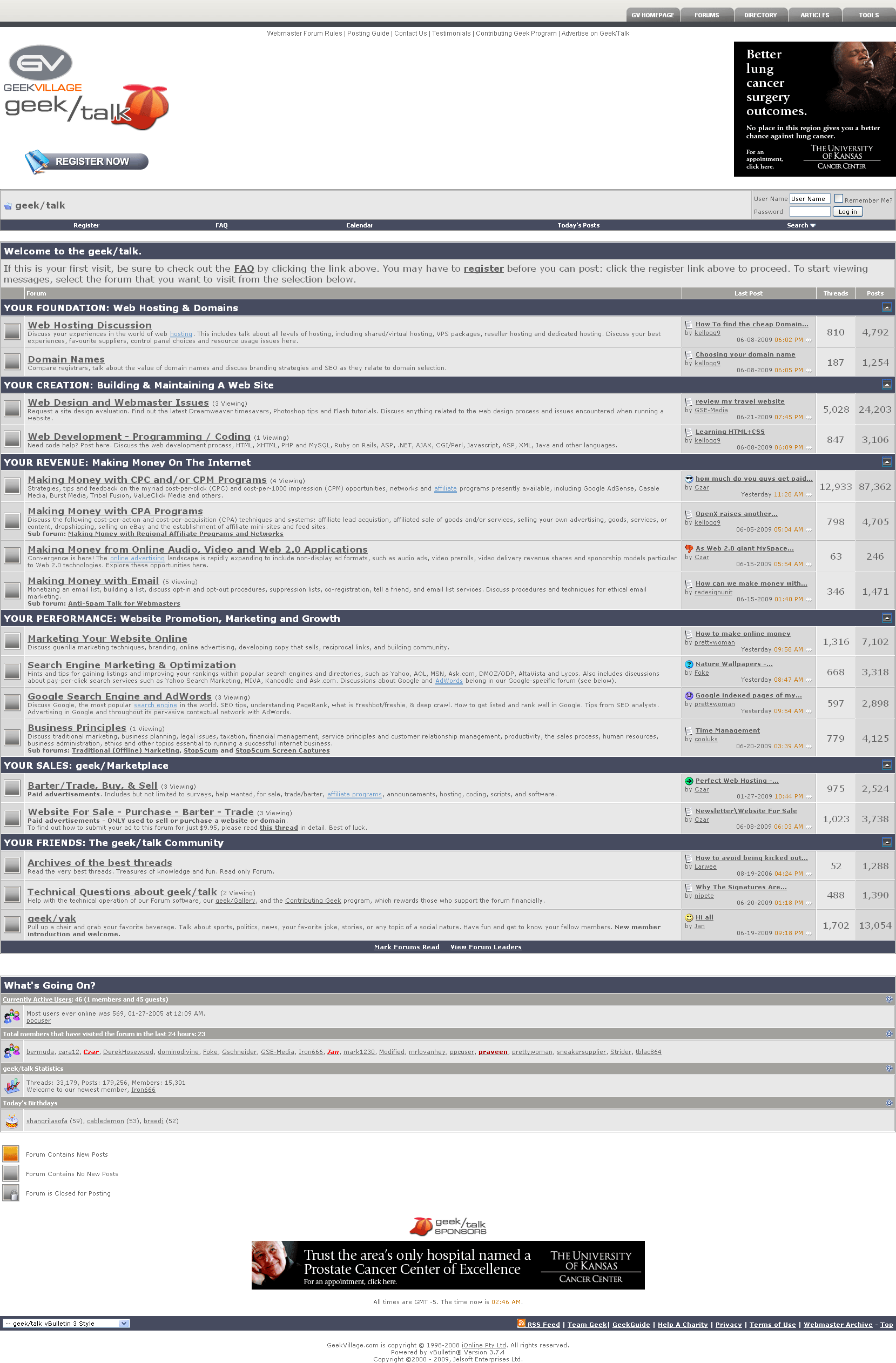
GeekVillage.com Forums: To list your site with the GeekVillage.com forums, it will cost you $9.95 per topic, and you must be a member in good standing with the forum.
geekvillages
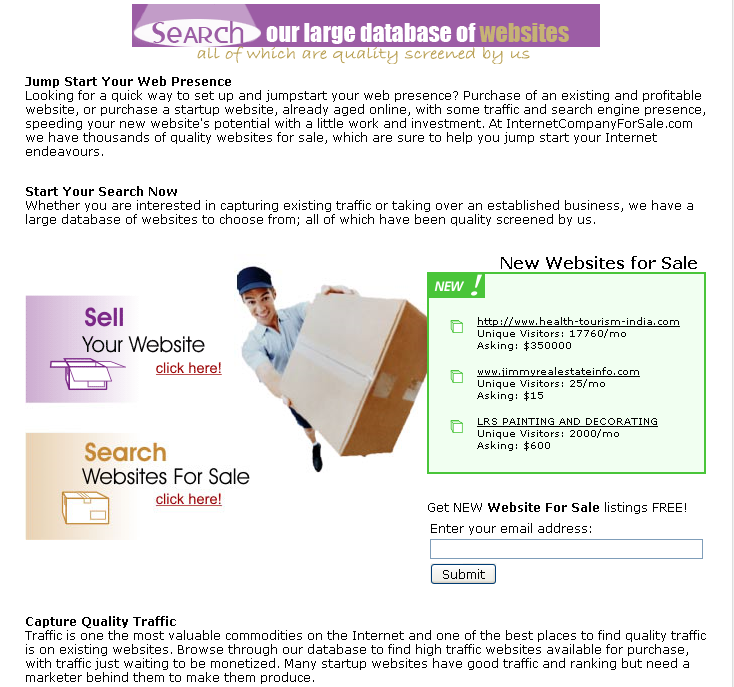
InternetCompanyForSale.com: This site charges no commissions on the sales through their company, but they do have one time listing fees depending on the type of site you want to sell. Established sites pay $59.95 for list-til-you-sell. Start-up sites will cost you $39.95, and a Permanently Featured Listing, either for a established site or start-up, it will cost you $99 and will get you featured in their bi-weekly newsletter.
internetcompanyforsale2s
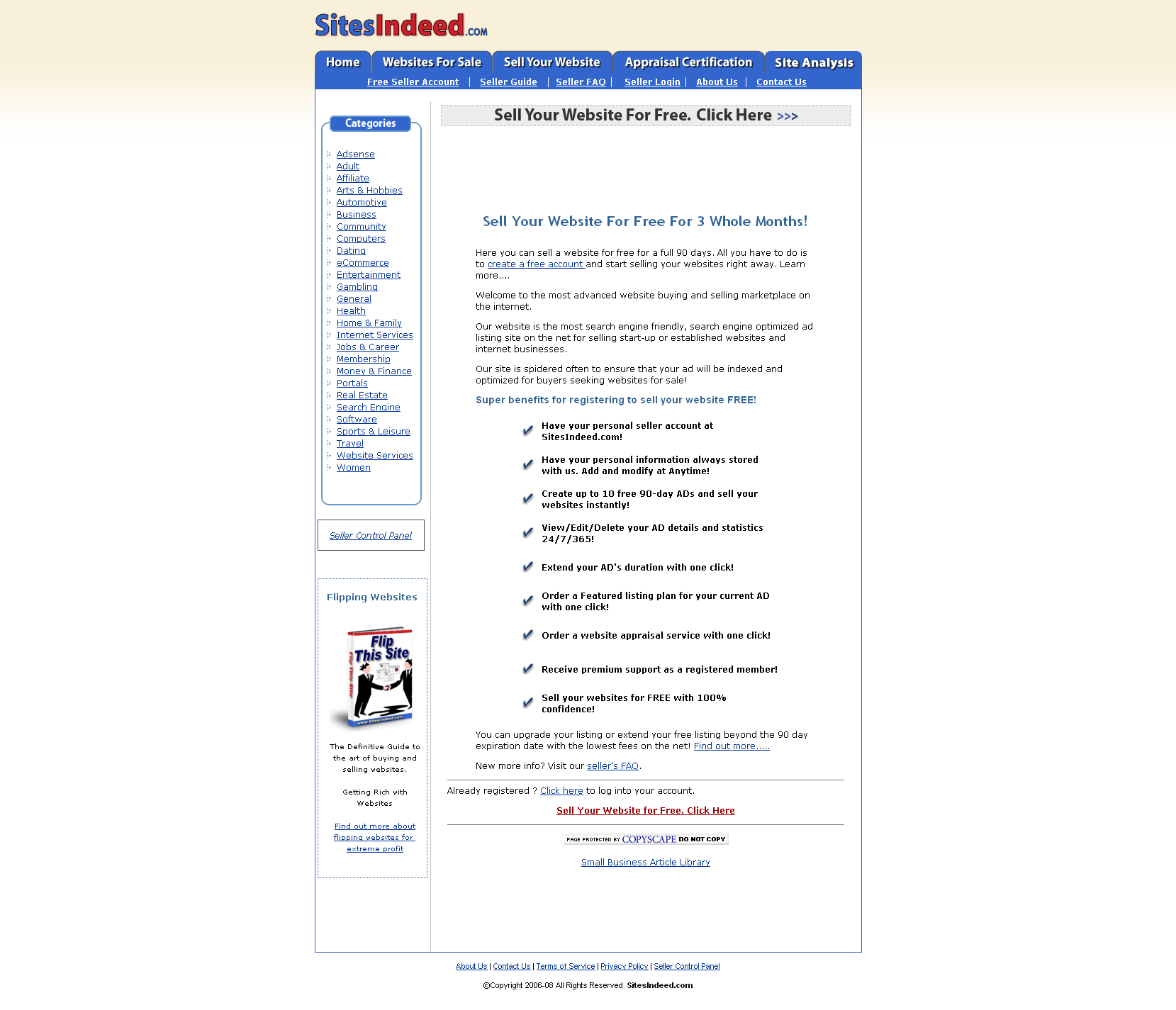
SiteIndeed.com: SiteIndeed provides basic listing ads for free for up to 90 days, but if you want to extend your listing past that they will charge you a fee based upon the number of days you choose. The site also provides featured listings that will give your site more prominent display for a fee, based on the number of days you wish to list it.
sitesindeeds
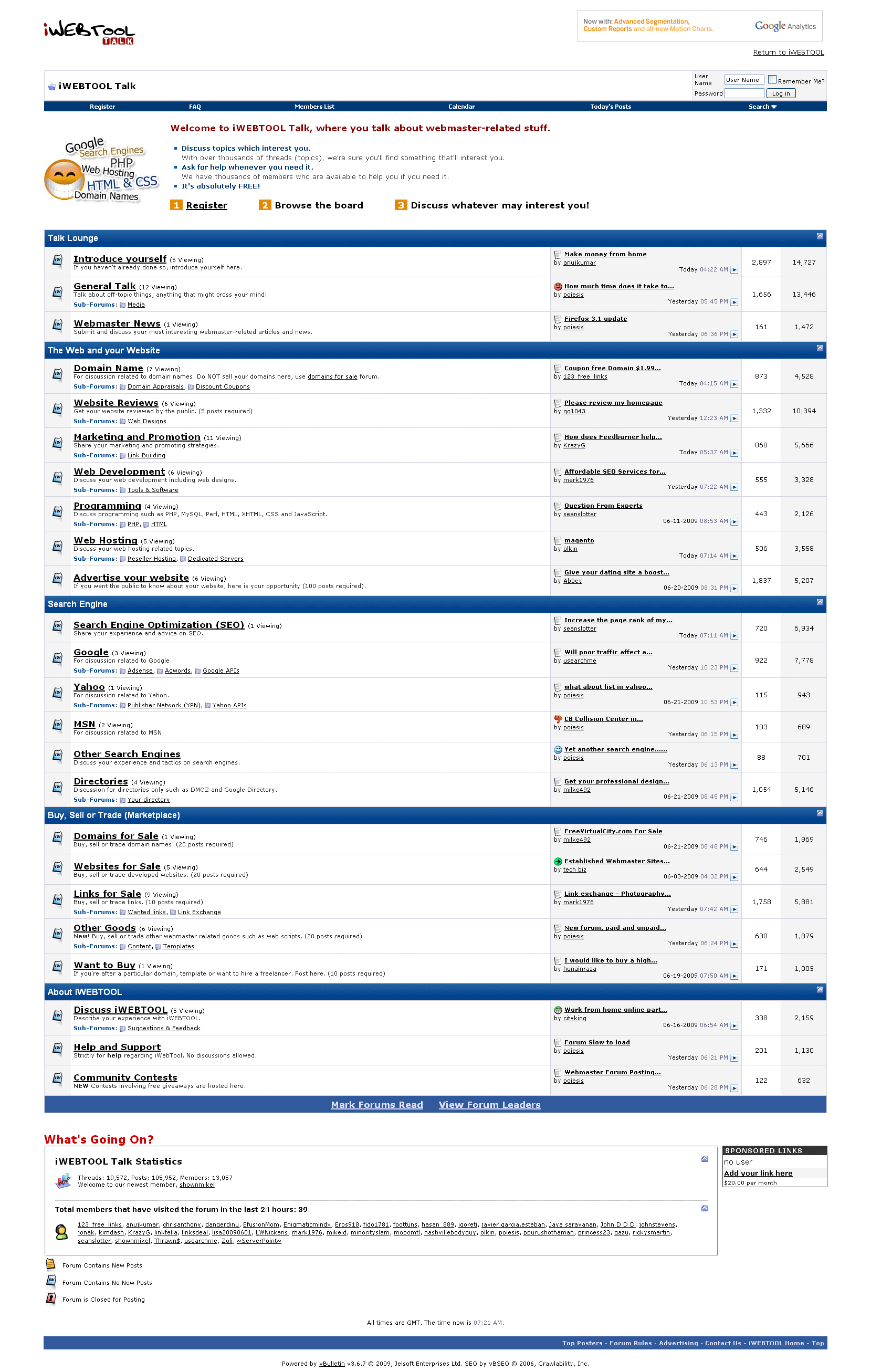
Talk.iWebTool.com: A forum dedicated to everything about developing your own web sites and domain names. It also has an active sales area for selling domain names, sites, scripts and more.
iwebtools
Webmaster-Talk.com Marketplace: A general sales site that allows you to do everything from promoting your services to selling your established sites. General listing fees are free, but services such as promotions will cost you credits you purchase with the site. With auctions, you can select to feature it on the main page, highlight it, etc., and those services will cost you a few dollars each.
webmaster-talks
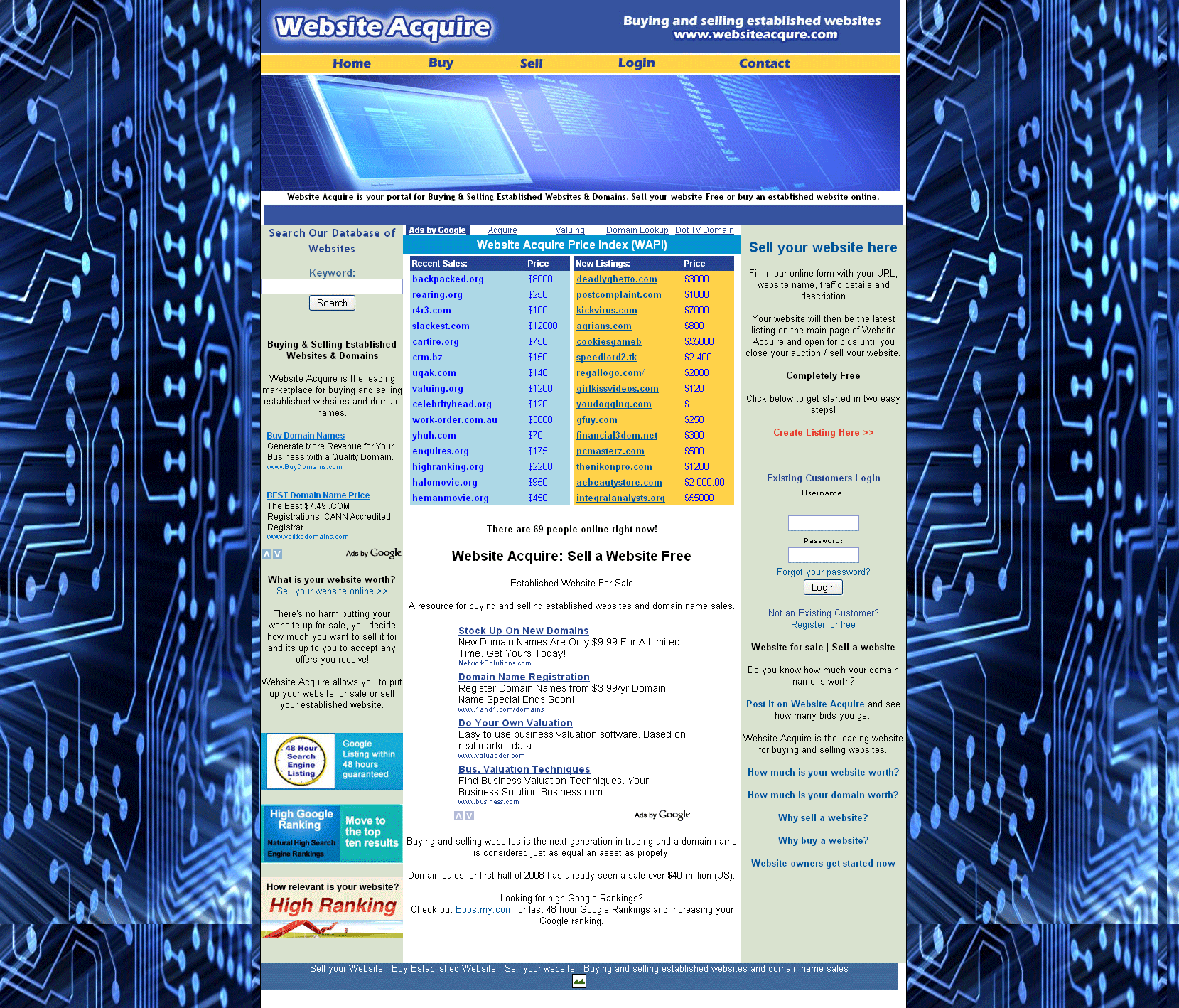
WebsiteAcquire.com: WebsiteAcquire only charges $5 for listing your site, but it isn’t very browsing friendly. When a user clicks on the link to buy a site, they ask you to search on keywords instead of just letting you browse the currently available listings.
websiteacquires
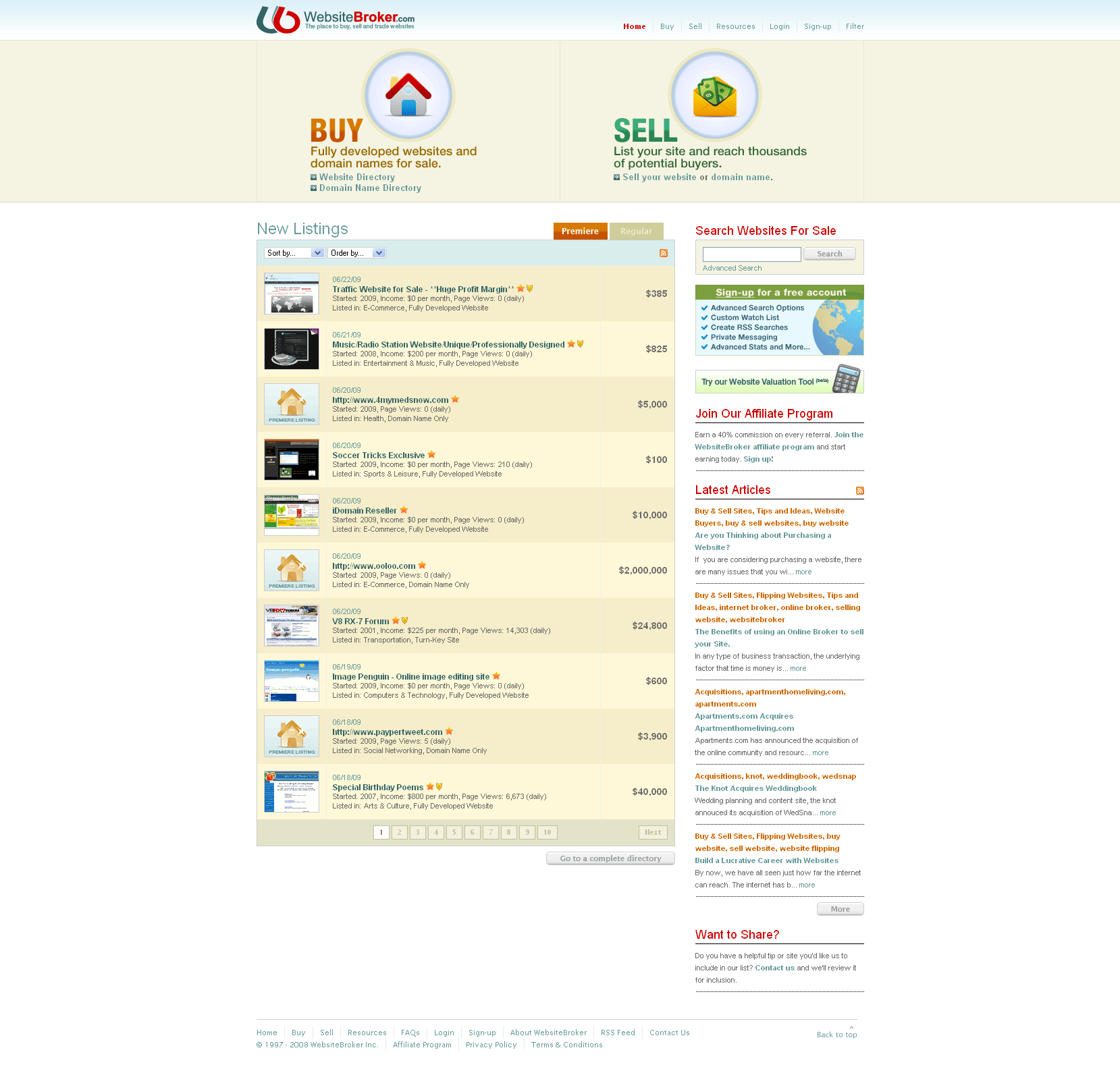
WebsiteBroker.com: WebsiteBroker allows you to sell both domain names and complete web sites. Web sites can be listed for 90-days for $9.95, or $29.95 for a premium listing that gains you extra exposure. Domain names have similar auctions priced at $9.95 for standard listing and $14.95 for premium. There is no commissions charged on completed listings.
websitebrokers
Which site is your favorite for selling your excess web sites?
The 8 Elements of Modern Web Design (And Web Design Trends to Watch)

The 8 Elements of Modern Web Design (And Web Design Trends to Watch)

Every year, we see new elements and styles in website design begin to emerge.
Some elements -- when incorporated thoughtfully -- help tell stories and explain your company. Other elements work to improve how content looks on a specific device. While it's not necessary to include every trend that comes about on your website, many of them have the potential to improve your visitor's experience. 
But with so many options to choose from, it can be challenging to determine which ones are reallyworth considering. To help you narrow your focus, we've detailed eight important elements of modern website design that you can include to improve your site's performance. 

For more tips on creating a modern web design, download our free website redesign template here.

8 Modern Website Design Elements and Trends

Element #1: Unique and Large Typography

Most companies have a particular font or typography that they use to help their customers immediately identify them versus their competitors. In recent years, designers have received a larger selection of fonts to choose from, making it easier for brands to more accurately express themselves through typography. 
For example, The New Yorker is recognized instantly through their use of unique font, Adobe Caslon Pro. While more unique fonts, such as Blokletters-Balpen, have begun to be used by startups and technology companies like Zero.

Why is it useful?

Typography uses one design trend across the website to lead readers to different parts of the page. For instance, The New Yorker website leads visitors from one section to another based on the typography and font sizes.
When creating your company's brand, your choice in typography can indicate subtle hints about who you are. Are you fun or serious? Functional or informational? Regardless of what font you choose, be sure that your designer considers its applicability across browsers and computers. Choosing a font that is not supported by common browsers and computers could mean that your website displays awkwardly on different devices. 

Element #2: Large & Responsive Hero Images

You don't have to go far beyond the popular publishing website Medium.com to see an example of a large hero image:

Large images such as this one do away with the concept of above and below the fold. By focusing on just the image with text rather than a CTA or social buttons, Medium creates a strong visual experience that encourages you to scroll down to read more. 
Large hero images are also often placed in the background with text and other content overlaid on top, like on Uber's website. Regardless of the approach you utilize, large images can help visually tell your story without having to rely on just text. 

Why is it useful?

Your customers are coming from all over the place and have high expectations. You may not be sure if they are finding your website from their phone, tablet, or desktop computer. The image that Medium uses above is extremely powerful, but if it was only visible from desktop computers, many people may miss it. 
That said, ensuring your images are responsive makes for a good user experience. Website visitors can look at different images -- whether they are the background or product images -- and be able to get the same experience no matter what device they are coming from. 

Element #3: Background Videos

Videos that automatically play in the background can add a lot to a page. They can be used to tell a story and significantly reduce the amount of other content that is needed to explain your business.
Let's take Wistia's website, for example. When you land on their homepage a large video automatically starts playing in the background, and by clicking on the play button, you get a deeper look at Wistia:
This background video serves as a brilliant way to get the visitor engaged to click-through to the main video. 

Why is it useful?

Background videos focus on enticing the visitor from the moment they land on your page. The video allows your visitor to understand the key points about your company without ever having to read a single line of text. 
In addition, video is processed 60,000 times faster by our brains compared to text. While people are often hesitant to read heavy blocks of text, videos appear effortless and can be consumed very quickly. It also helps that connection speeds are increasing and mobile device sizes are growing, making for better video experiences.

Element #4: Semi-Flat Design

In 2013 Apple fundamentally shifted to flat design. Simply put, flat design is any element that does not include or give the perception of three dimensions, such as shadows. Not only is flat design is easier for users to comprehend, but it can also load more quickly on websites without complicated or overly-technical elements.
Following in Apple's footsteps, many other organizations -- both large and small -- have shifted to flat design. However, company's like Uber have put their own spin on the style by adding subtle shadows and dimensions. As you can see in the image below, the boxes have an element of depth with shadows around them, without overdoing it:
When you scroll over any of the boxes on the Uber homepage the shadow disappears and relieves the image behind it.

Why is it useful?

Flat design helps the visitor understand your content more quickly, and adding some elements of depth can bring it to life. Regardless of whether you fully design your website using flat design or utilize shadows and other elements, it's important to be consistent throughout your website. Ensure that your homepage, product pages, and any other key sections of your website all utilize the same design cues so that visitors can instantly understand what they're viewing.

Element #5: Hamburger Menus

It's likely that most websites you come in contact with have a long menu of options to choose from. The advantage of this is that the menu can take the visitor directly to where they want to go. However, the disadvantage is that they generally take up a ton of valuable screen space. 
The hidden, or hamburger, menu changes this. This menu was common in web applications before making it's way to web design -- even in Google Chrome you can find a hamburger menu on the right-hand side.
Source: UX movement
Wondering why it's called a hamburger menu?
If you use your imagination, the three lines that are stacked on top of one another look like hamburger patties. Get it?

Why is it useful?

The pages of your website should have a clear path for the user to take. Removing a busy navigation makes the experience cleaner and distraction free. This improved experiences help to improve the likelihood that the user will find the information they need to complete a desired action. 

Element #6: Giant Product Images

You may have noticed that many B2B websites are starting to display large product images on their sites to highlight different features or parts of their product. This is no coincidence. 
To give you a better idea of what we're talking about, let's take a look at the product page for the HubSpot Website Platform:
There is a large featured image at the top of this page, and as you scroll down the page there are additional in-depth product images. The images are also responsive which aims to ensure an optimized experience for viewers coming from different devices, as we mentioned earlier. 

Why is it useful?

Larger product images help designers highlight different features of a product in a more efficient and effective way.
This approach reinforces the benefits of a feature by providing the opportunity to highlight the most valuable pieces. For instance, in the second image, you will notice that there are numbers on the image corresponding with benefits of certain features.
These large images are also scan-friendly. They help visitors generate a solid understanding of what the different product features do by convey them through images instead of words.

Element #7: Card Design

With the rise of Pinterest, designers and marketers alike have become fascinated with cards. Individual cards help distribute information in a visual way so the visitors can easily consume bite-sized pieces of content without being overwhelmed. 
Brit + Co's homepage serves as a great example of card design in action:
By breaking up different pieces of content into cards, users can pick and choose which articles they want to expand. This helps to keep the homepage feeling clean and organized, without relying on a ton of text. 

Why is it useful?

Card design is becoming more and more popular across B2B and B2C websites because it helps to deliver easily digestible chunks of information for users. Using this design on your site can help highlight multiple products or solutions side-by-side. 
Keep in mind that your cards should be responsive. This means that as the screen size gets smaller or larger, the number and size of cards shown should adapt accordingly.

Element #8: Short Product or Feature Videos

In addition to background videos, companies are also beginning to use short product or feature videos to highlight a specific use case. These short videos are great at bringing your solution to life, while not overwhelming the visitor with a long experience that they must sit through.
A strong example of this comes from the folks at InVision. They display this short illustrator of how easy it is to use their product by dragging-and-dropping a design directly on their homepage:

Why is it useful?

According to Inc. Magazine92% of B2B customers watch online video, and 43% of B2B customers watch online video when researching products and services for their business. Therefore, B2B companies need to create videos that explain their products because it is influential in the buyer's decision-making process.
These short videos allow for your prospect to quickly understand value without watching a really long, in-depth experience. Sure, both have value, but the shorter videos allows for quick understanding that is best for top of the funnel. 
What other design elements are important to incorporate into your website? Let us know in the comments section below. 
Editor's Note: This post was originally published in January 2014 and has been updated for freshness, accuracy, and comprehensiveness.

How to Make Your Website Look More Professional

How to Make Your Website Look More Professional

You are not a designer. How do I know? If you were, your visceral reaction to our blog’s design would have bounced you so fast off this page, that you would not have made it past the title…jk, jk..(sort of).  I actually don’t feel bad saying that because we are really close to launching a new blog design that is going to be a huge improvement.
For you non-designers that have made it this far I’m glad your visceral reaction wasn’t too negative because you need this advice. Your visitors are making a split second decision about how your website makes them feel, as soon as they arrive to your content, and it makes every bit of difference to how they engage with your post, if they share it with their friends, and whether they want to eventually come back to buy what you’re selling.
When a user first visits your website, the first thing that they’re going to notice is what the website looks like – navigation, services, great links, and quality content will all come later. Because first impressions count, it’s important that your website looks professional. The next step is to make sure your website IS professional, by helping users find exactly what they’re looking for.
If a user enters your site and is immediately turned off by the layout, look, or inability to do what they want to do, your content marketing is doomed to fail. It’s that Blink of an eye that makes all the difference.
To be clear. I’m not a designer and I’m certain our designers could provide much better advice on this matter, but if you’re an online marketer or your business has a website, there are some simple design elements and website features you need to be aware of. Here goes.

How to Make Your Website Look More Professional


1. Pay Attention to Fonts

Fonts are a quick and easy way to change the look and feel of your webpage, making it look more fun, more goofy, more serious, or more down-to-business. Picking a font that matches your company’s style and culture is essential to a look that is professional, modern and distinctive. It sets the tone for the entire page. Larger fonts should be used for headings and subheadings, titles, and important need-to-know information. Choose fonts that are easy to see (not super tiny), easy on the eyes (no ridiculously bright colors), and are easy to read (lots of curls can be hard to make out).
(Check out this great post from our senior designer: Why is Typography so Important to Content Marketing?)

2. Background is Important

Backgrounds can be simple or sophisticated, ranging from just a single color tone that’s easy on the eyes, to a photo that’s enticing and mesmerizing. It shouldn’t be too overwhelming, and it should reflect your business’s unique brand style. Here AirBnB does a great job of making a stranger’s apartment look welcoming.
website background


3. Use Big Images

One of the easiest ways to make your website really standout, look more professional, and increase user engagement is to use big, high-quality, beautiful imagery. The technique is one that’s used by some of the biggest brands. Take Apple for example with the launch of their iPhone 6. If you want to immediately build credibility and draw the user in, a big beautiful photo is a great way to go.
big pictures on websites


4. Keep it Simple

No one likes a cluttered site – it’s hard to look at, and even harder to navigate. Your website should be kept clean and clutter free, well organized, and great at directing users exactly where they need to go. One publishing platform known for the effectiveness of its simplicity is Medium. Here’s a post on Medium by our EVP and member of Outbrain’s founding team, John Logioco: Why Trust is the Key to Innovation… Especially in Publishing.
simple website

5. Make it Easy for People to Learn More About You

One of the easiest ways to make your website look much more professional is to have a section where people can find links for discovering all that they need to know about your business. Typically, this is at the bottom of a website, and will include links for contact information, your about page, career section, and more. If you don’t include all of the information that people are used to seeing in a site’s footer, you can lose some credibility. Here’s what theStarbucks footer looks like:
website footer


6. Use Basic Logos

Logos that are complex – with too many colors and too many different fonts – can be distracting to a first-time visitor to the site. Instead of going for something too bright or too bold, aim for something that’s simple, straightforward, and visually appealing. After the memorable Twitter logo, Biz Stone did not disappoint with the logo for his new company, Jelly; memorable, recognizable, simple, and explains the brand name in logo form.
website logo

7. Consider Implementing Icons

Much like a logo, an icon can be a simple way to represent an idea or a command in picture form, and can greatly improve the professional look and feel of your site. Icons don’t have to be complex, and they don’t have to be used for everything. For example, an example of an icon that’s nearly universal and directs a user to where they need to go is the shopping cart icon, which represents, of course, an online shopping cart. Square does an excellent job of communicating concepts efficiently and beautifully through icons:
icon examples on website

8. Choose a Color Scheme

A color scheme is an important part of a professional website, and much like text and background, can highly influence the immediate like-ability and appeal of your site. A color scheme should be consistent throughout your website, so that users don’t constantly have to readjust each time they visit a different page. A color scheme should also be chosen to fit your business goals and website theme – pink might not be appropriate for a company focusing on local produce and recycling, just like green might not be appropriate for a company that focuses on princess costumes for children. Here’s Evernote’s use of a consistent color scheme.
 website color scheme examples

9. Do Design Research

There is no one answer to a great website design. Some use images alone for navigation, others use drop down lists, yet others use blocks of information that a user must scroll through to find what they’re looking for. Some websites are long, some are short, some have lots of connected pages, some don’t. It’s important that you are familiar with what’s possible. Researching what other people are doing is the best way to contribute great ideas to your design process. While you may prefer a website, like the Apple example above, that features one central image with links to surrounding information, you may also prefer a website that offers many images all on one page. You won’t know if you don’t do the research.  99 designs is great place to start to get a sense of what is out there and who can help you create it.

In conclusion

This may all seem a little overwhelming for us non-designers, but as long as you’re aware of the elements that make for a well designed website, it will be much easier for you to communicate to a designer why you don’t think something looks professional.  While your visceral reaction is usually something you want to trust, how you communicate that reaction will help your designer tremendously, and make your visitors feel welcome when they land on your page.
What other tips do you have for the non-designer that will decrease the % of people who bounce from their content because of their first reaction to the design?